1 · Open The View
Enter the Meaning graph and use the toolbar as the operating surface.
Open the Siloquy evidence viewer, switch to the Meaning graph view, and use the toolbar above the graph. In the current local branch, the evidence server is commonly tested at http://127.0.0.1:8766 when it is running.
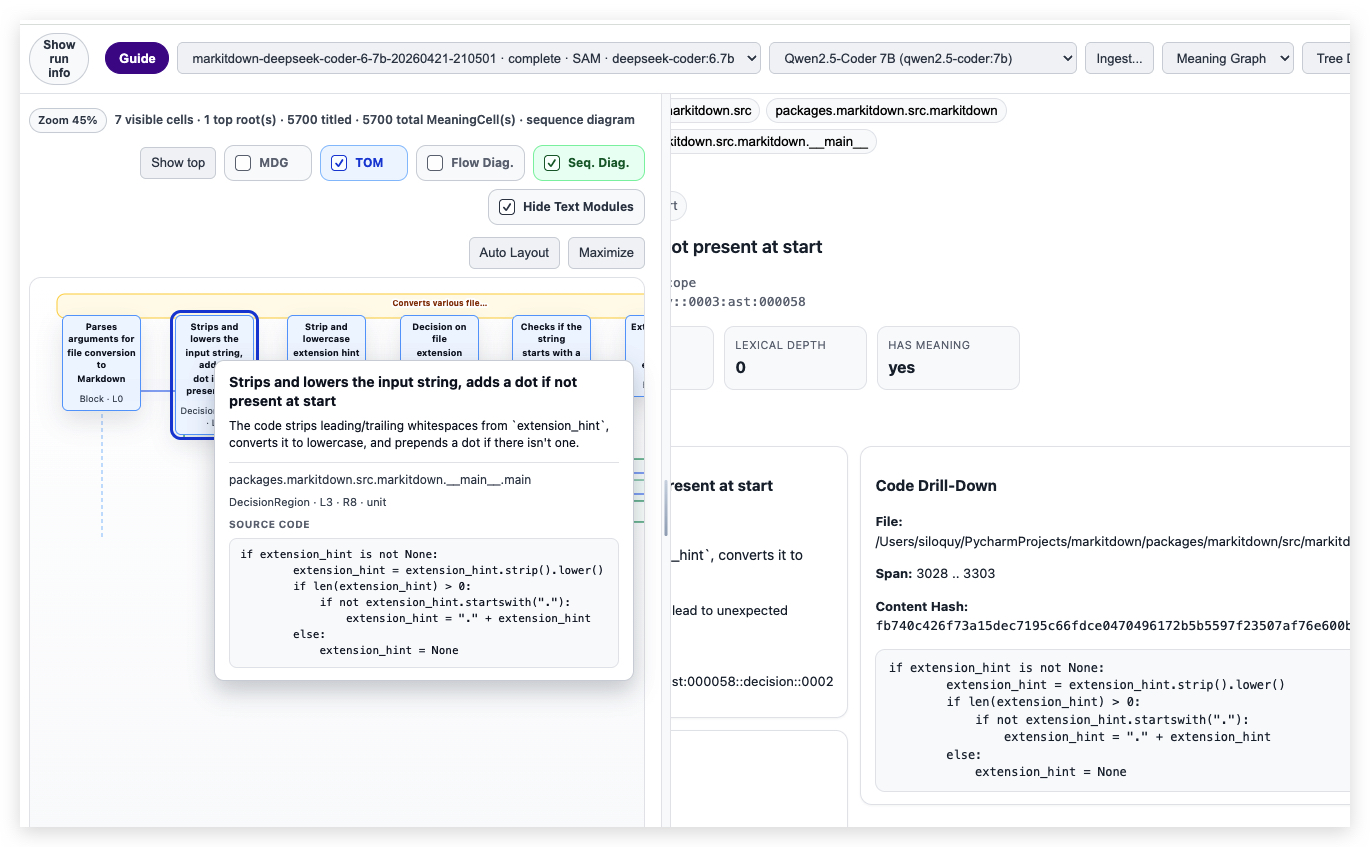
Show or hide Meaning Dependency Graph links.
Show or hide TOM links. Turning TOM off leaves diagram mode.
Show TOM-connected cells as a controlled flow diagram.
Show the same TOM thread as participants, lifelines, and messages.
Reset stored graph positions and recompute the layout.
Expand the graph or restore the detail area when inspecting dense diagrams.
2 · Choose A TOM Flow
Focus the diagram on a thread instead of treating the graph as freehand geometry.
Right-click a MeaningCell and choose TOM: Show flow to focus the diagram on that cell's connected TOM thread. In the ordinary graph, small TOM stub buttons at a node side also open the same action.
If Flow Diag. or Seq. Diag. is enabled without a selected TOM thread, the viewer tries to derive one from the active cell or visible graph roots. If no TOM-connected cells are available, the diagram surface is intentionally empty.
3 · Flow Diagram
Read TOM-connected MeaningCells from left to right.
Flow Diag. renders connected MeaningCells as boxes. Blue arrows are TOM LOGICAL_NEXT relationships, and TOM edge labels appear when zoomed in enough. Left-side ports act as TOM entry anchors; right-side ports act as TOM exit anchors.
Click a node or port to select or reveal the related MeaningCell. Edge labels and edge hit areas carry TOM identity for inspection. Hover a node or TOM edge area to inspect details, and right-click a node for graph actions.
4 · Sequence Diagram
Inspect the same TOM thread as UML-like participants and messages.
Seq. Diag. renders participant boxes across the top, dashed vertical lifelines, and horizontal blue arrows as TOM messages. Message labels come from the TOM edge label.
Yellow group bands summarize shared parent or context regions. Narrow blue activation spans show where a participant is active across one or more messages. Participant boxes, message hit areas, group bands, labels, and activations preserve semantic and provenance metadata for inspection.
5 · Context Menu
Use right-click actions to change the semantic focus.
Right-clicking a MeaningCell opens the graph context menu. Current actions include Fold, Fold all, Unfold, Unfold all, MDG: Show next level, MDG: Show upper level, TOM: Show flow, Start from here, and Show top roots when the view is rooted or focused.
Some entries are disabled when they do not apply. For example, hierarchy folding is unavailable for a node without visible children, and TOM: Show flow is disabled for a node without TOM neighbors.
6 · Navigation And Inspection
Selection, hover, zoom, and status lines keep the diagram accountable.
- Single-click a MeaningCell participant or flow node to make it the active selection.
- Double-click hierarchy nodes in the ordinary graph to expand or collapse children.
- Hover nodes for MeaningCell summaries and hover TOM edges or messages for relationship details.
- Use wheel or trackpad panning and the viewer zoom behavior to inspect dense diagrams.
- Read the toolbar status line for visible cells, roots, titled cells, total MeaningCells, and current projection.
7 · Current Limits
The visible groups are inspection objects, not editable diagram objects.
The current branch carries renderer primitives and view-state schemas for future collapse and group commands. User-driven flow collapse, uncollapse, sequence group, and ungroup commands are not yet exposed in the interface.
This is deliberate for now: the visual surface is a semantic viewer over existing Meaning Cells and TOM links. The priority is trustworthy inspection before diagram editing.